Client
SplitCam
Industries
Creator Tools, Streaming
Services
Product Design
AI Product Experience
Timeline
Ongoing retainer
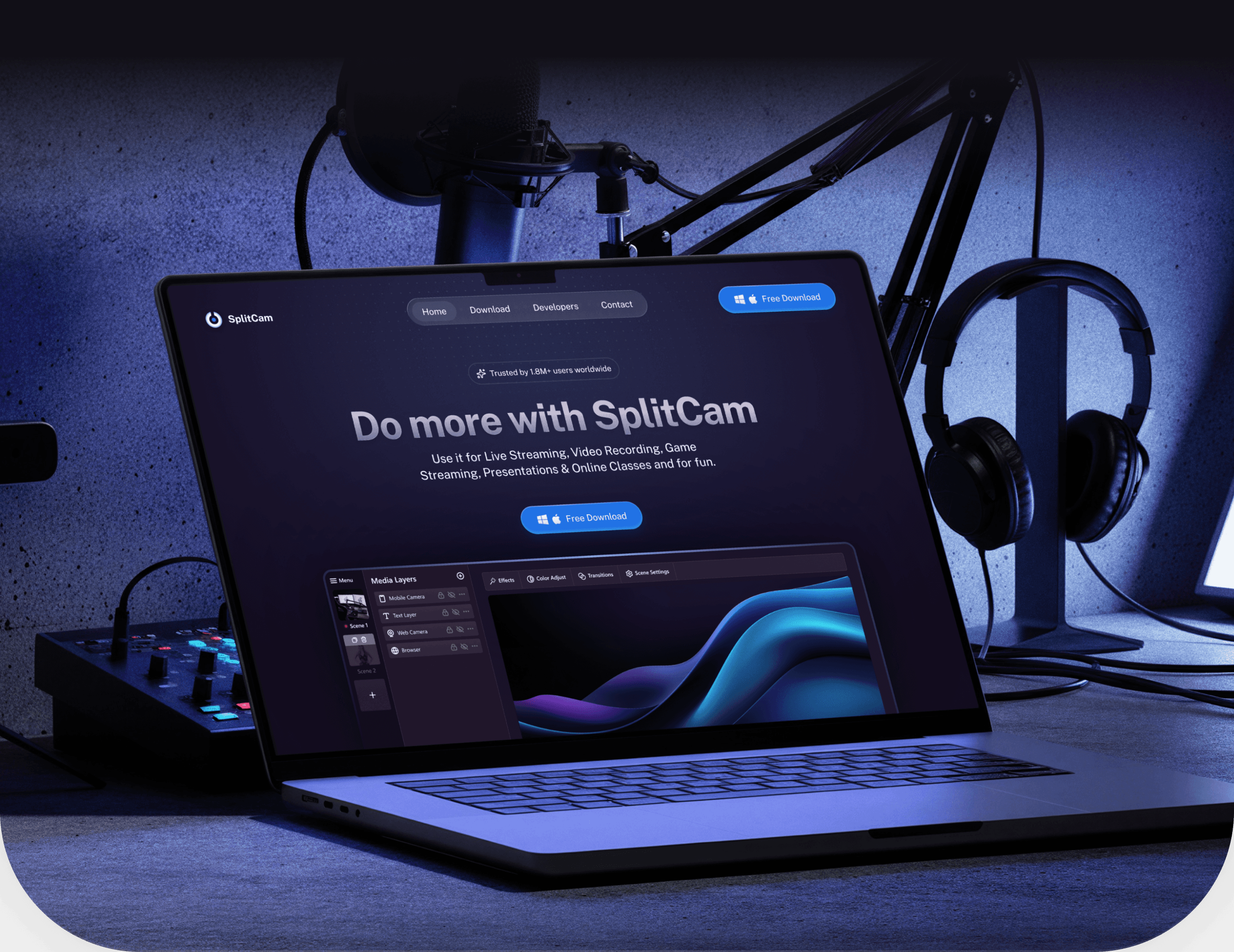
Trusted by 1.8M+ users worldwide
SplitCam is a long-term retainer client. The work started as a desktop redesign and grew into a streaming studio for Mac and Windows, a mobile app and a watch companion. The product serves around 1.8M users worldwide. I was the only designer, working directly with the CEO and CTO.
45%
adoption rate
~3 min
less time to go live
22%
support requests

The problem
SplitCam had a loyal user base and a streaming engine that worked. The interface reflected neither. Years of new features had turned the editor into a stack of floating panels. New users needed a long setup before their first stream, and experienced streamers filed tickets for things the app could already do. The goal was canvas-based editing, simpler multi-streaming and live effects, without breaking what power users already knew.

Previous Windows-based application
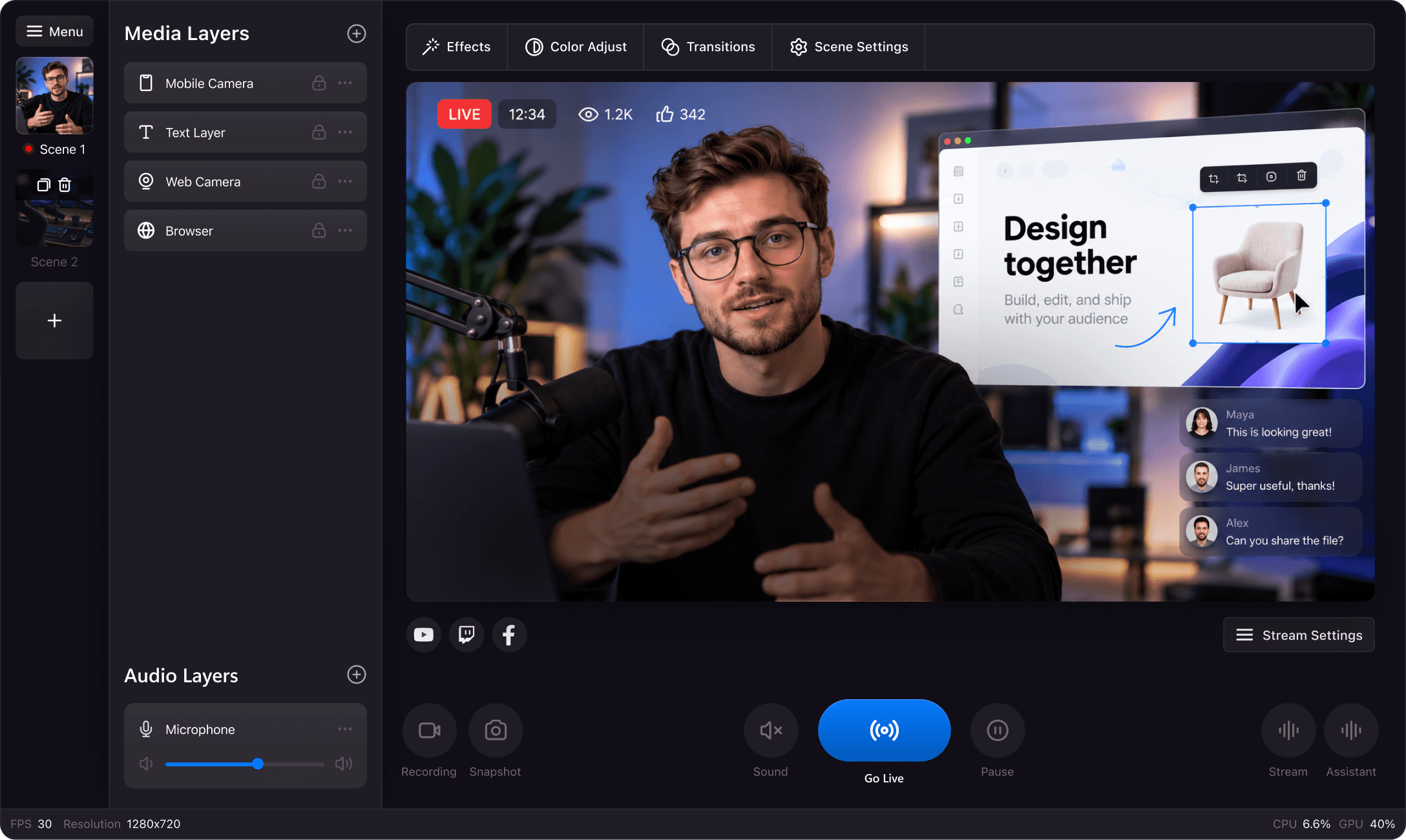
Studio is the desktop app for streamers who run full shows. The layout follows the order people build a stream: scenes on the left, layers next to them, the canvas in the center and live controls below. Every setting has one fixed place, so the canvas shows only the stream.
Properties toolbar
Toolbars that floated over the canvas jumped with every selected layer. I moved all layer settings into one bar above the canvas. It adapts to the layer type, text, image, video or slideshow, and always stays in the same place.
Quick stream control
Sound, Go Live and Pause used to sit among the editing tools. I grouped the live controls in one row under the scene, with Go Live as the only primary button. Editing happens above the canvas, broadcasting below it.
Streaming stats
Support requests showed streamers leaving the app to check whether they were live and who was watching. I brought subscribers, watchers and platform status into the studio with a quick preview.
Real-time filters
Static thumbnails made every effect a guess. Each filter now previews on the streamer's own frame, with a split line showing before and after. Streamers see the result before their audience does.
Most streamers already own a second camera: their phone. Studio connects it over the local network as a regular source, so it appears in Media Layers next to the webcam and moves, crops and takes effects like any other layer. Streamers place both cameras in one scene, save the arrangement, and cut between the desk view, the phone view and the split view with a hotkey during the broadcast. A second angle with no capture card and nothing new to learn.

A stream is more than a camera. In Studio, everything on screen is a layer on one canvas: cameras, screen capture, images, video, text, logos, stickers and tip alerts. Every layer works the same way: select it, move it on the preview, fine-tune it in the properties bar. An empty canvas is hard to start, so an AI assistant builds the first version from a short request, using real layers you can edit.

Mobile
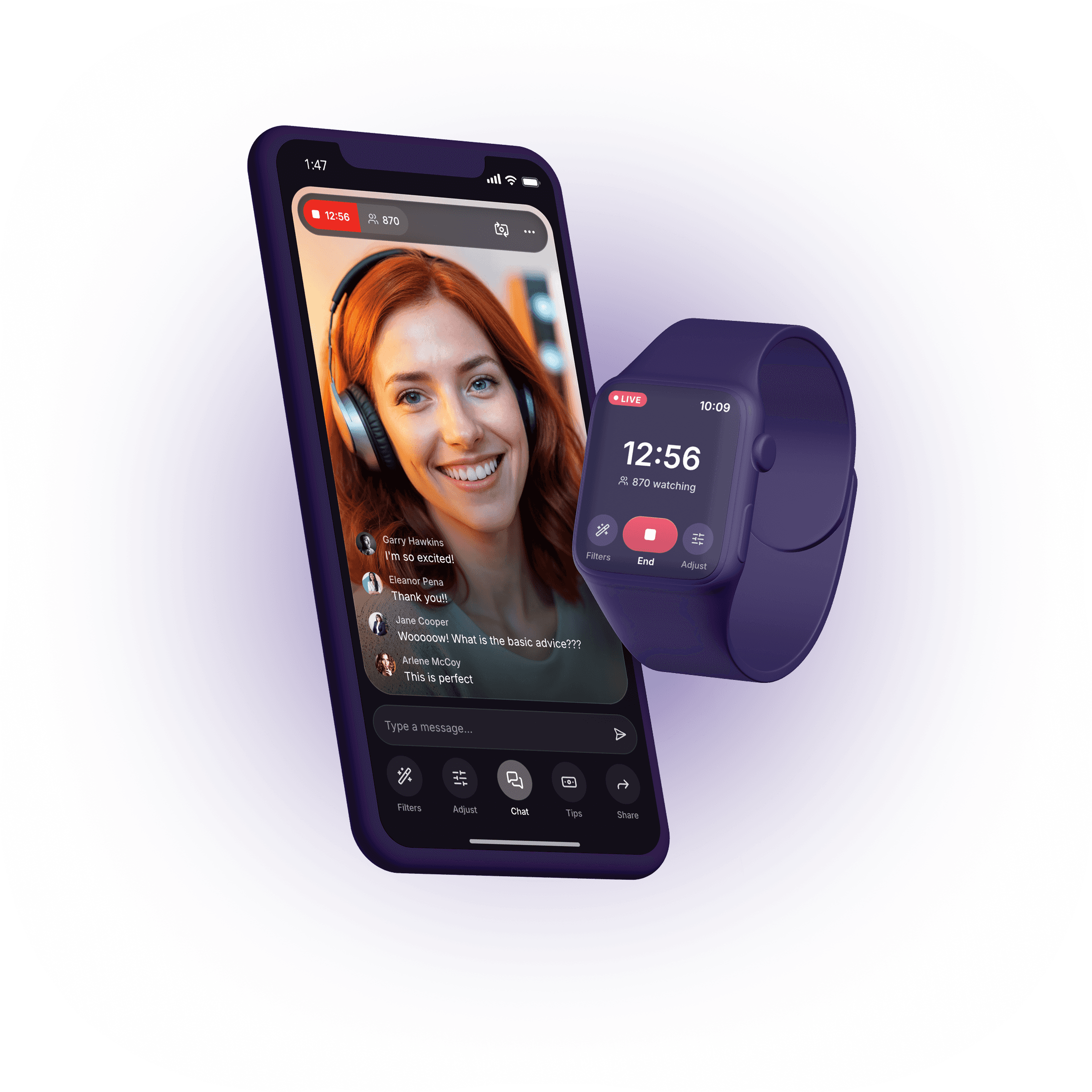
A streaming app for creators who go live from their phone, to their own fans. The phone is the whole studio, and the watch keeps the stream under control from the wrist.
Full-screen camera with live stats above
Chat over the stream, replies in one tap
Watch tracks viewers and ends the stream
All on-air tools in one row
by the thumb
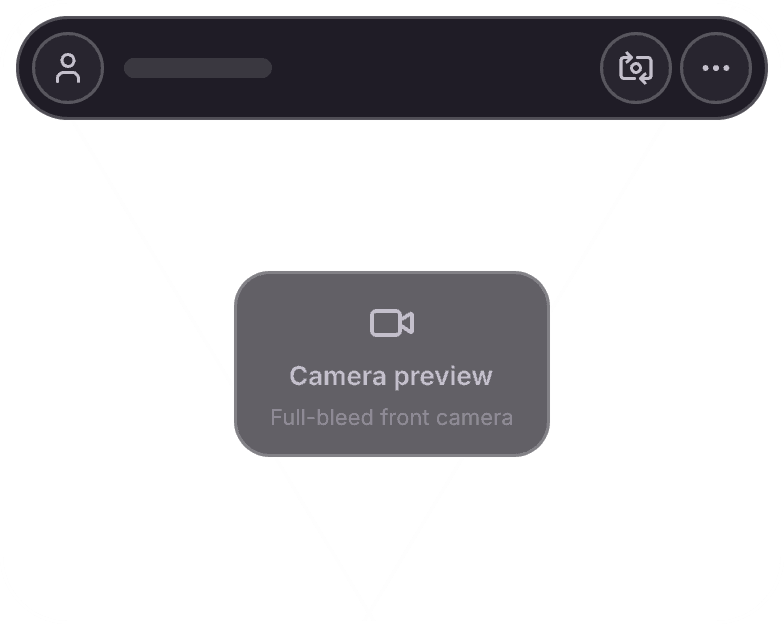
Camera first
The full screen is the camera. Effects and settings sit as two small buttons beside Go Live, so the creator sees exactly what fans will see before starting.

Look ready before live
Stickers and beauty filters share one tray, sorted by mood: Trending, Party, Natural, Retro. A tap applies the look before going live or during the stream.
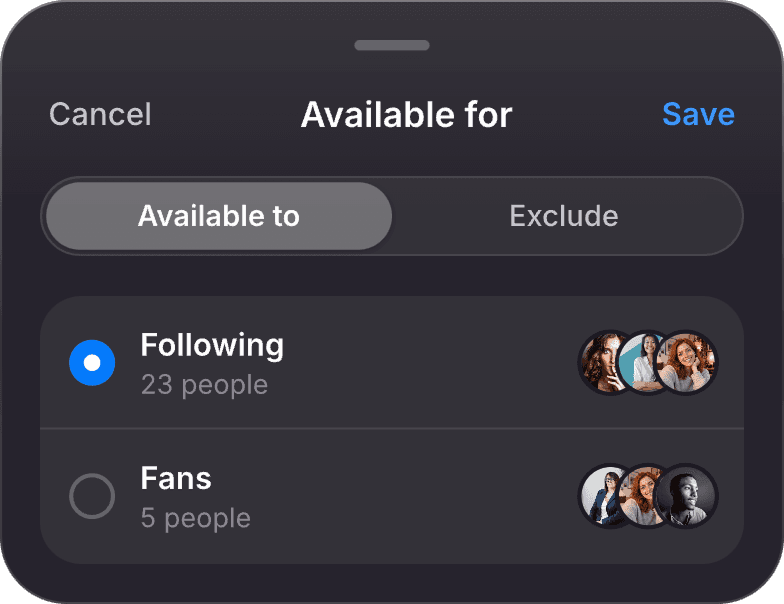
Audience upfront
Who can watch is set in one sheet before going live. Creators can include or exclude groups like followers or fans.

Live without clutter
On air, the screen keeps only what matters: time live and viewer count at the top, chat over the video, so the creator stays in the loop.

When the phone is mounted across the room, creators can't reach the screen. The watch app keeps the stream within reach. Live status, the stream timer and the viewer count are readable at a glance, and filters and adjustments change with a tap on the wrist. A large red button ends the stream without touching the phone.

Design system
One system runs across desktop, iOS and watchOS. SF Pro in four weights and four type sizes keeps text consistent on every screen, from a 27-inch monitor to a 41 mm watch. The dark palette lets the stream stay the brightest thing on screen, and two signal colors carry the meaning: blue starts an action, red means on air. Rows, chips and live controls are shared components, so a creator who learns them on one device already knows the others.

Outcomes
The redesign shipped to a base of 1.8M users. 45% of incoming users adopted the new studio, and going from the first scene to on air took around 3 minutes less. Support requests dropped by 22% after release. Desktop, iOS and watchOS now run on one design system, so new features ship with the same look and logic everywhere.
45%
adoption rate
~3 min
less time to go live
22%
support requests